
Ever opened an old project to find missing samples and plugins that won’t load? This is how I archive every session.
1. Collect All and Save
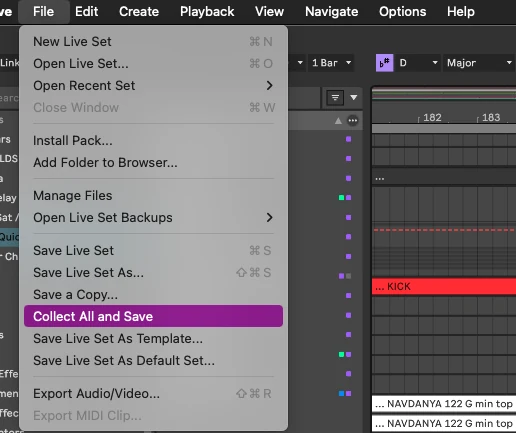
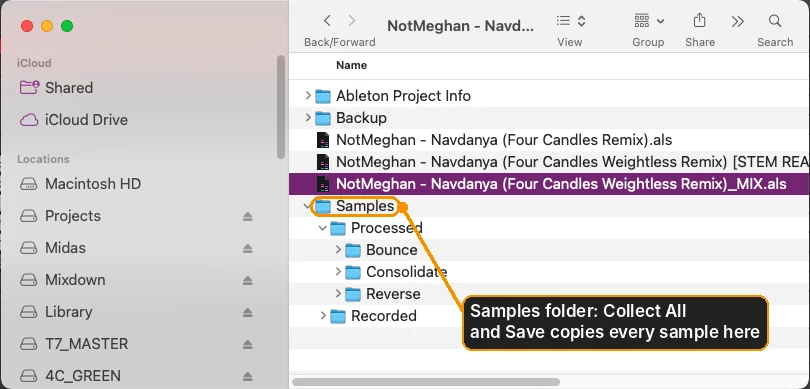
In Ableton, go to File > Collect All and Save. This copies every sample the project uses into the project folder.
2. Name it properly
I save my mixdown copy with “_MIX” on the end (see How to Export Stems for Mixing). That same _MIX version is also my archive copy, so there’s one clear file to go back to.
3. Print the risky stuff
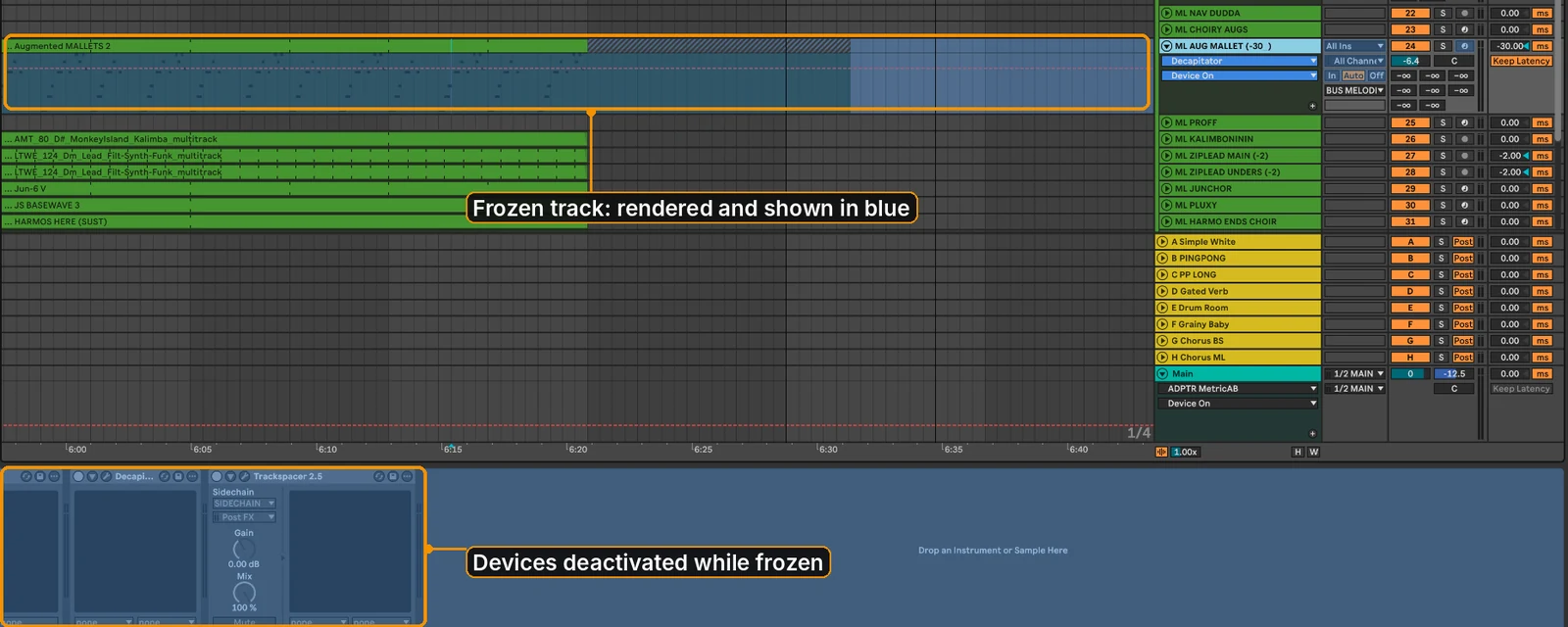
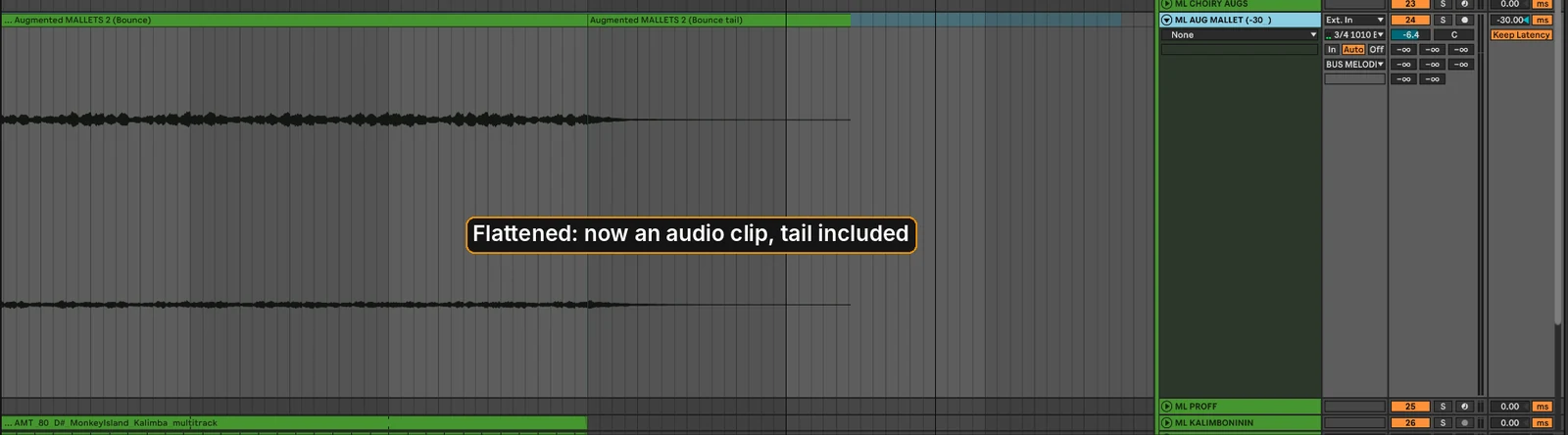
Freeze and flatten, or resample, any third-party instruments and effects, so the audio survives even if the plugin doesn’t. Keep the original track next to it, deactivated.
4. Bounce a final mix and stems
Put a final mix and a set of stems in the same folder. See How to Export Stems for Mixing.
5. Add a notes file
Note the tempo, key, sample rate and plugins used.
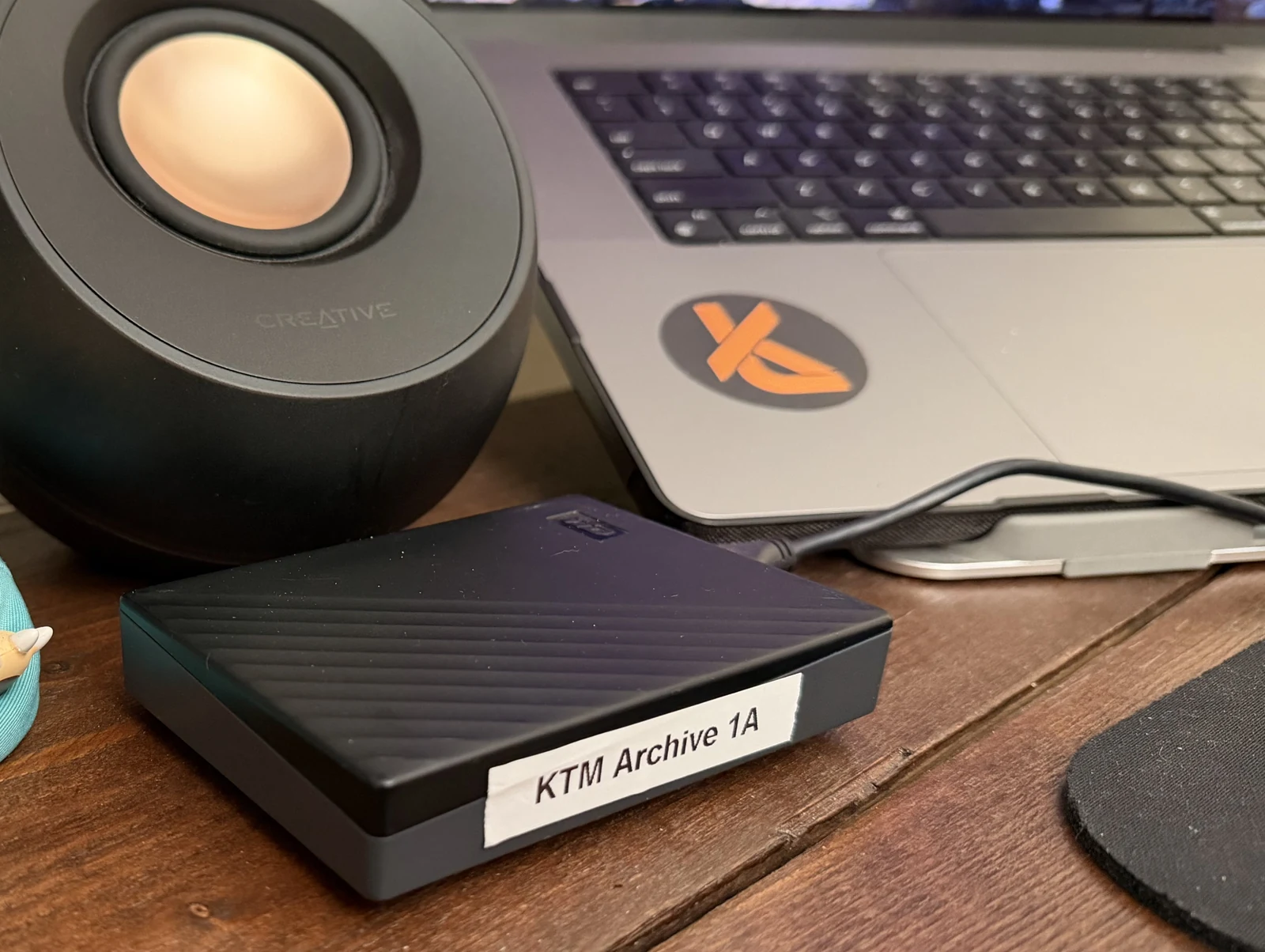
6. Back up 3-2-1
Three copies, on two different types of storage, with one off-site (e.g. cloud).
7. Check it opens
Open the archived copy from the backup drive before you delete anything.